Odoo Customization Services for Business Efficiency
Odoo Customization Services
SNS Odoo Enterprises customization services List
Check more details by the click on the given link
1. Sales Quotation Unit Price customization services
2. Purchase Order Unit Price customization services
3. Add Comment or Memo column in Sales Order Tree
4. How to make changes in Sales Quotation Customer Preview Template
5. How to create the Test Link or Test Database from Odoo Enterprises Live application Database
6. How to make Product Barcode automatically generate in Odoo 13 Enterprises
7. The process of Purchase Order and it's cost price in Odoo 13 Enterprises
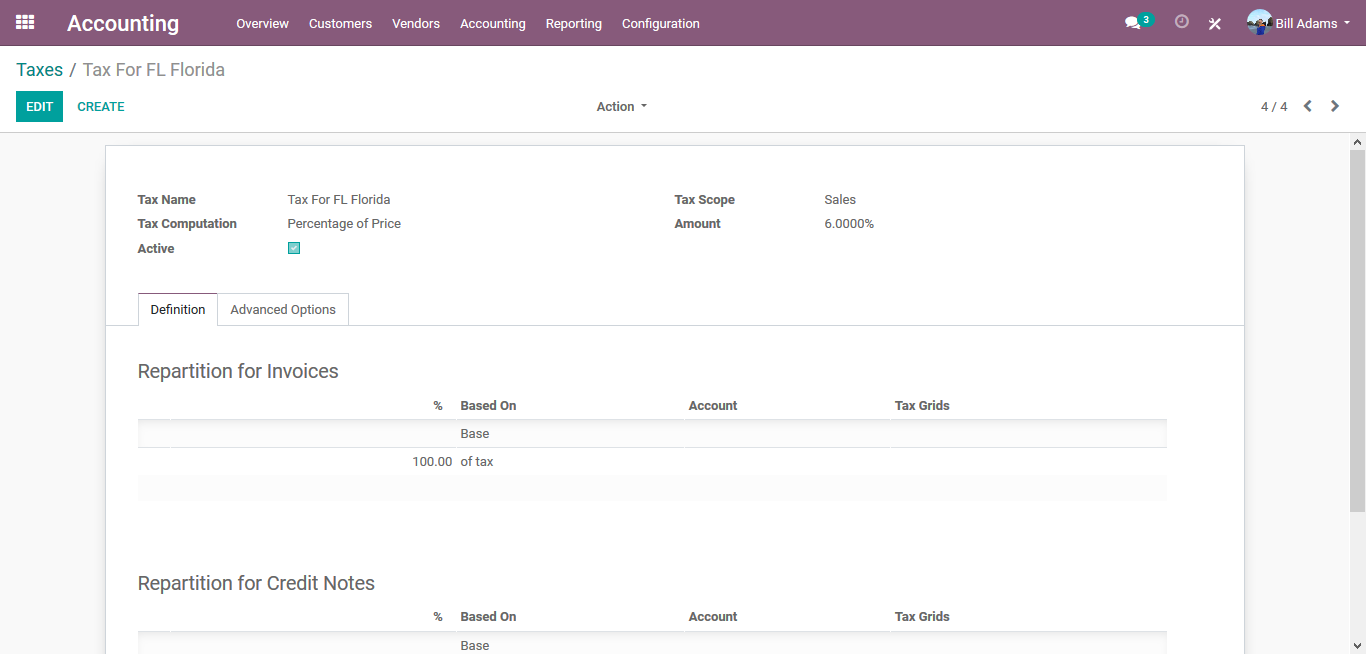
8. How to set tax in Sales Order for a particular State customer
9. How to set Round Robin process to assign the Leads
Sales Quotation Unit Price customization services:
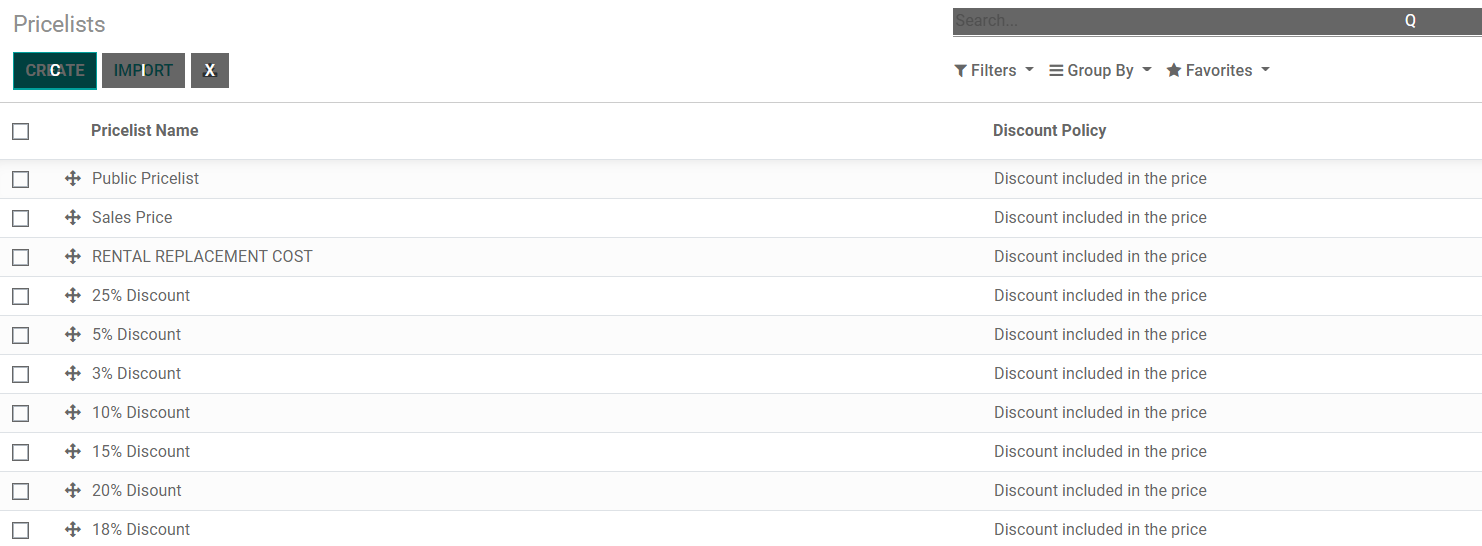
1. Sales ==> Products ==> Pricelists
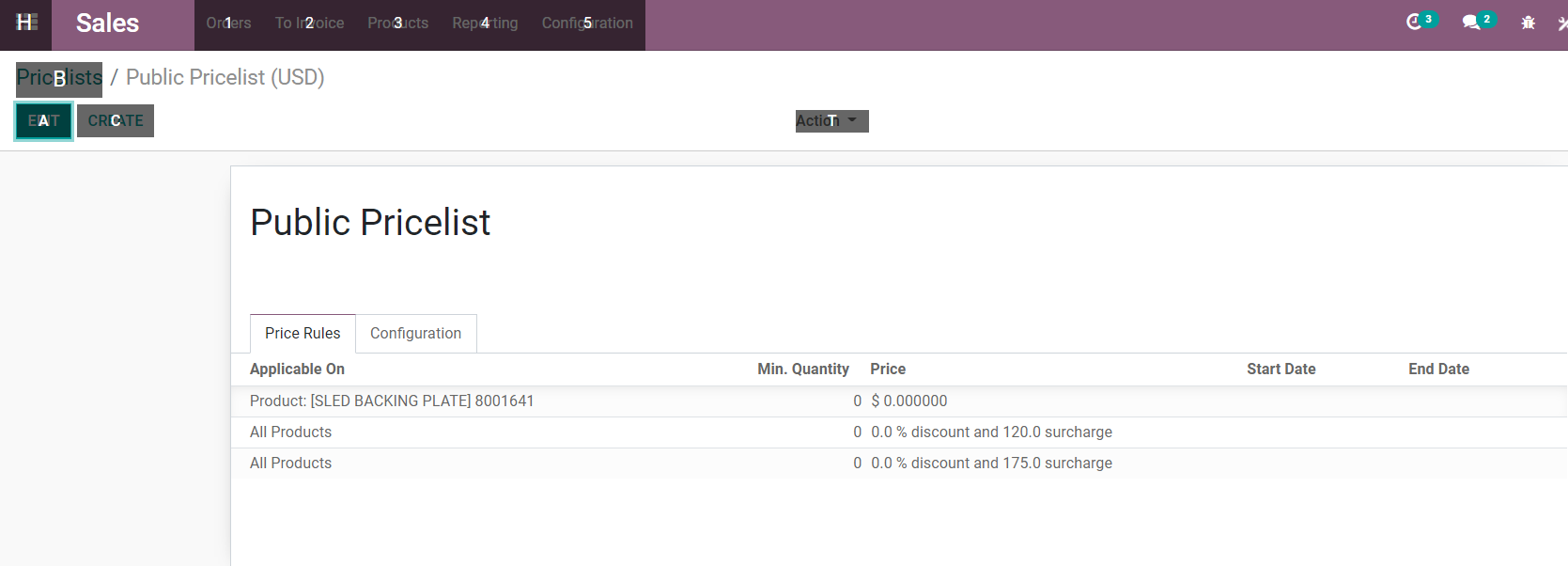
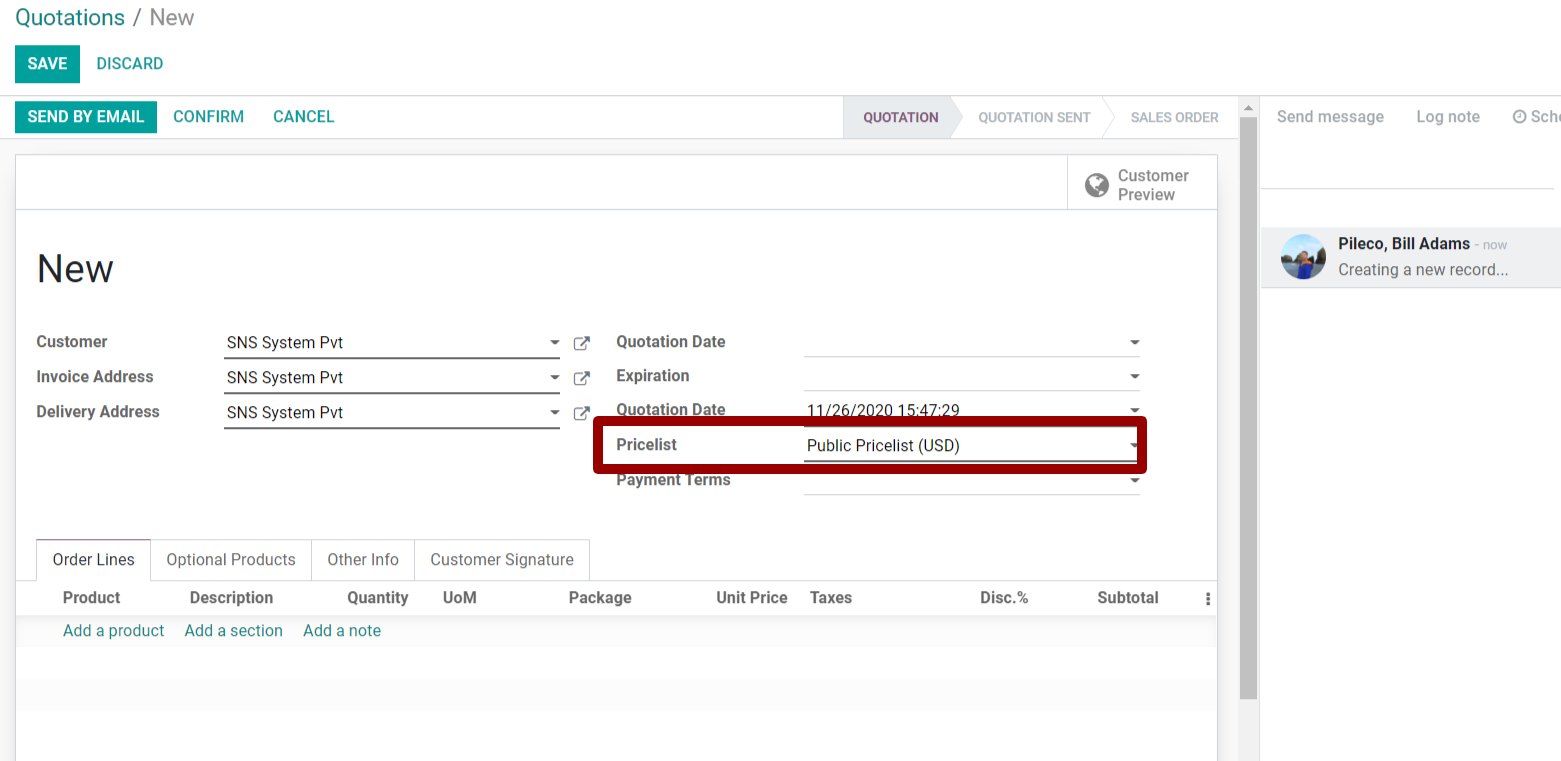
At the time of Sales Quotation, "Public Pricelist" is using to calculate the Unit Price value. Please check the below Public Pricelist value.
2. Sales Quotation
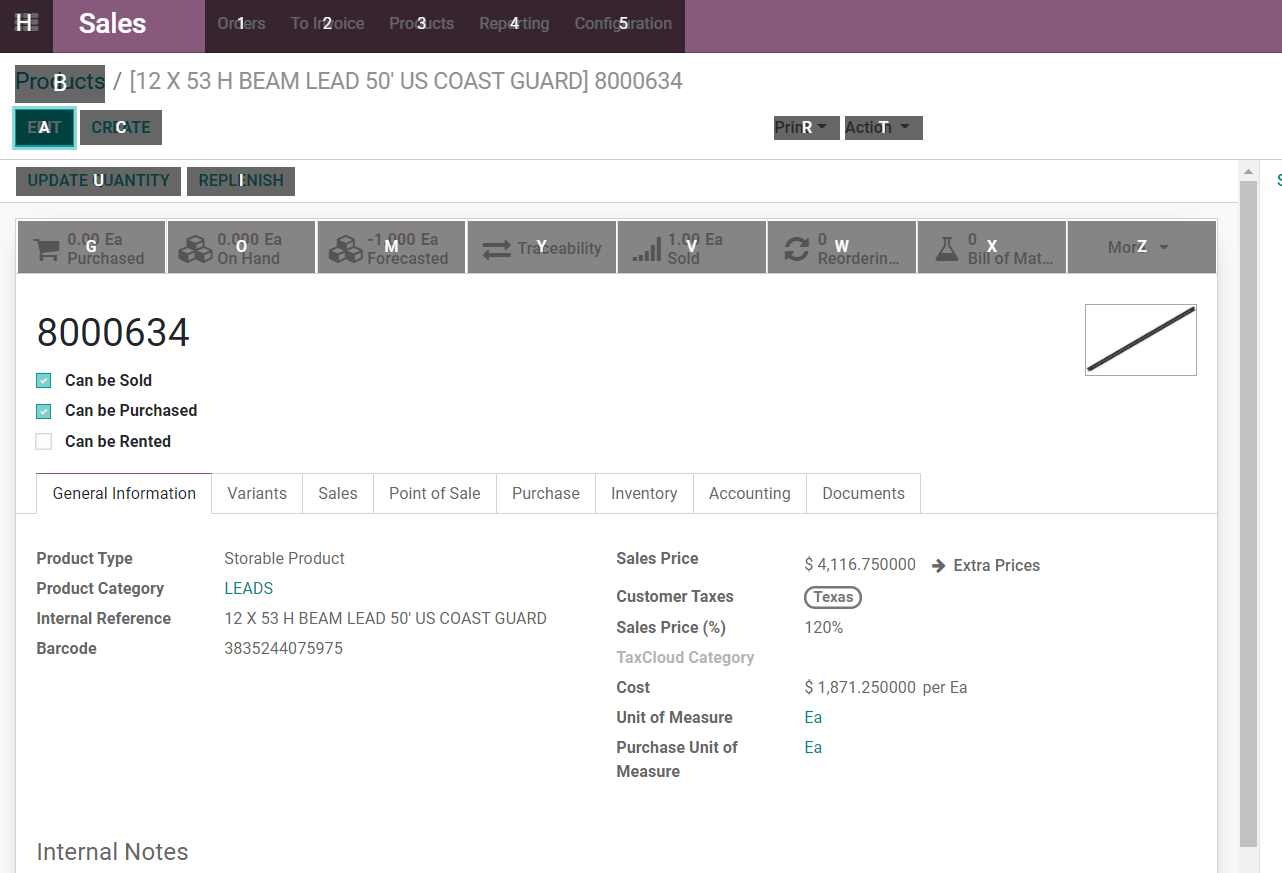
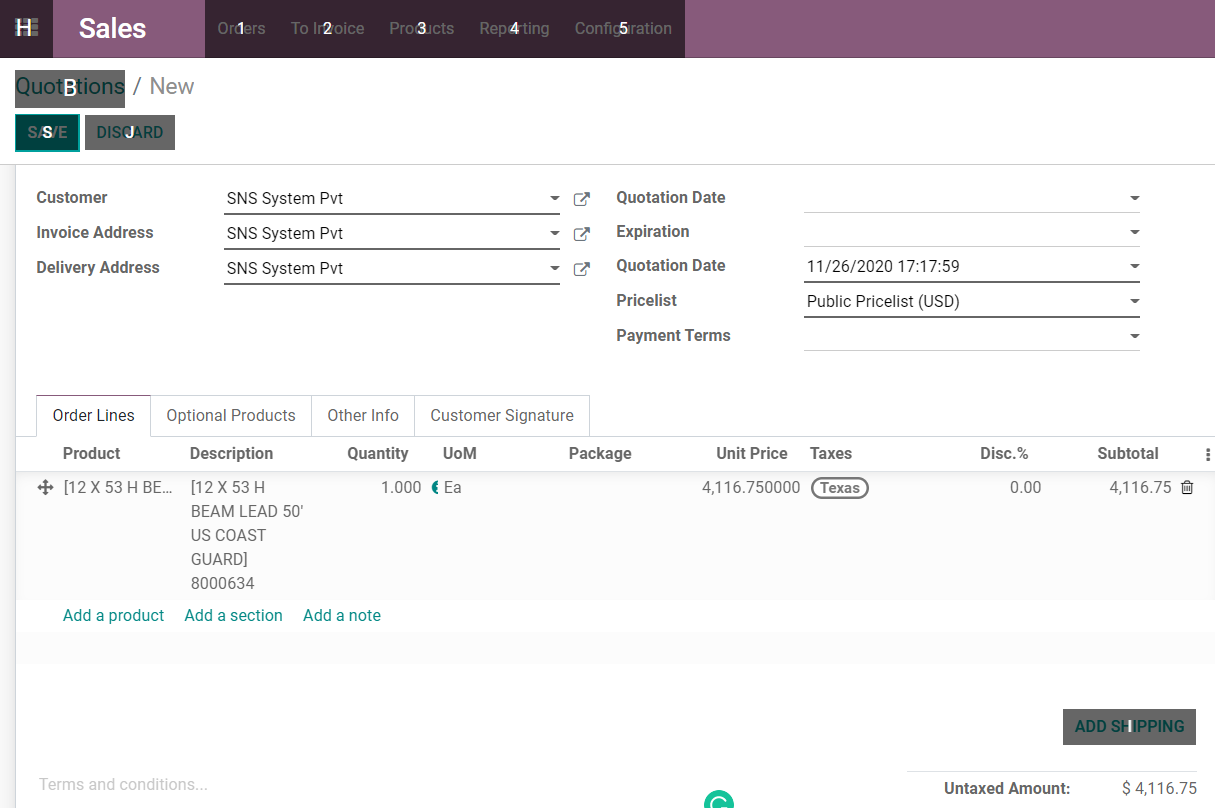
3. the product price and other things. We have to create a Sales Quotation for this Product and its sales price is $4116.75
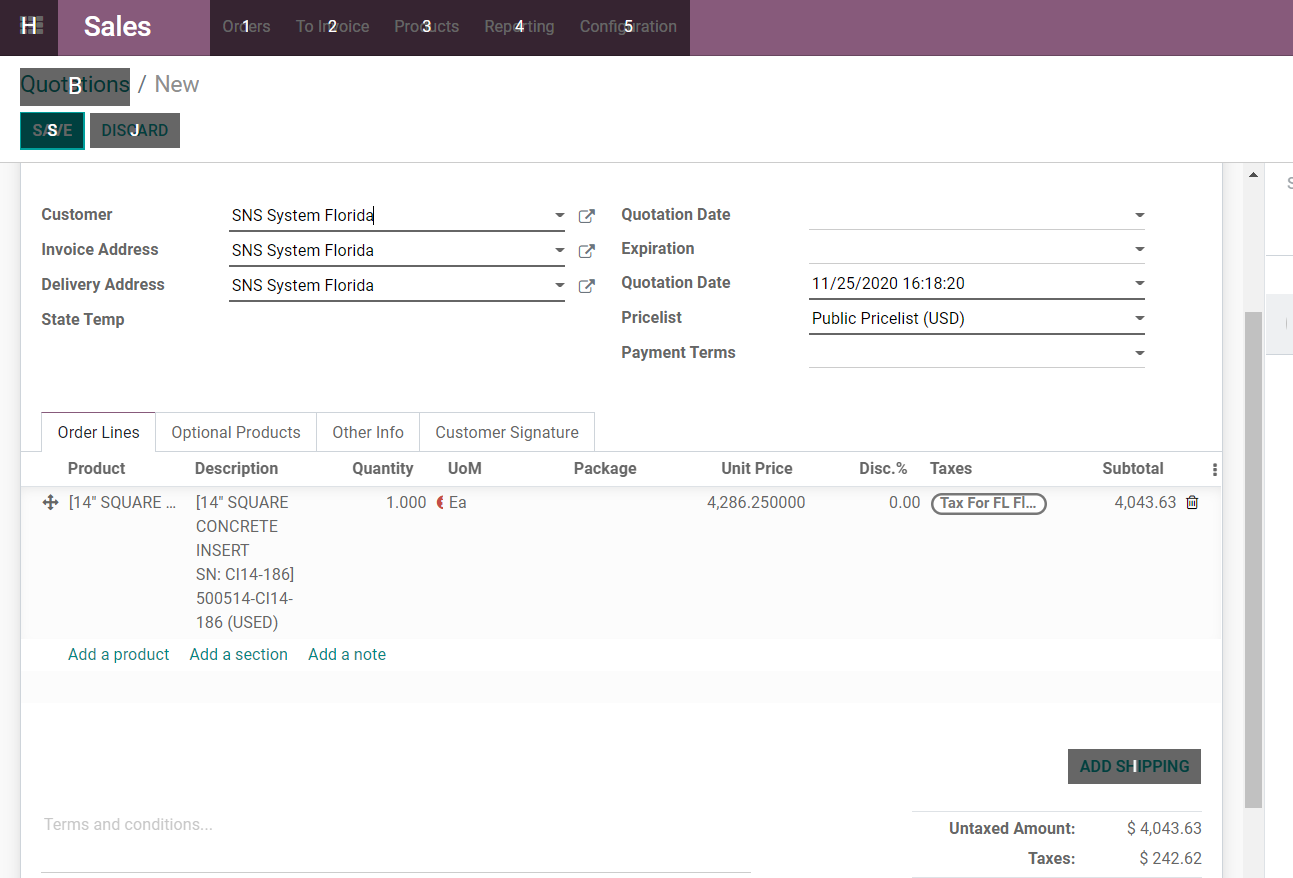
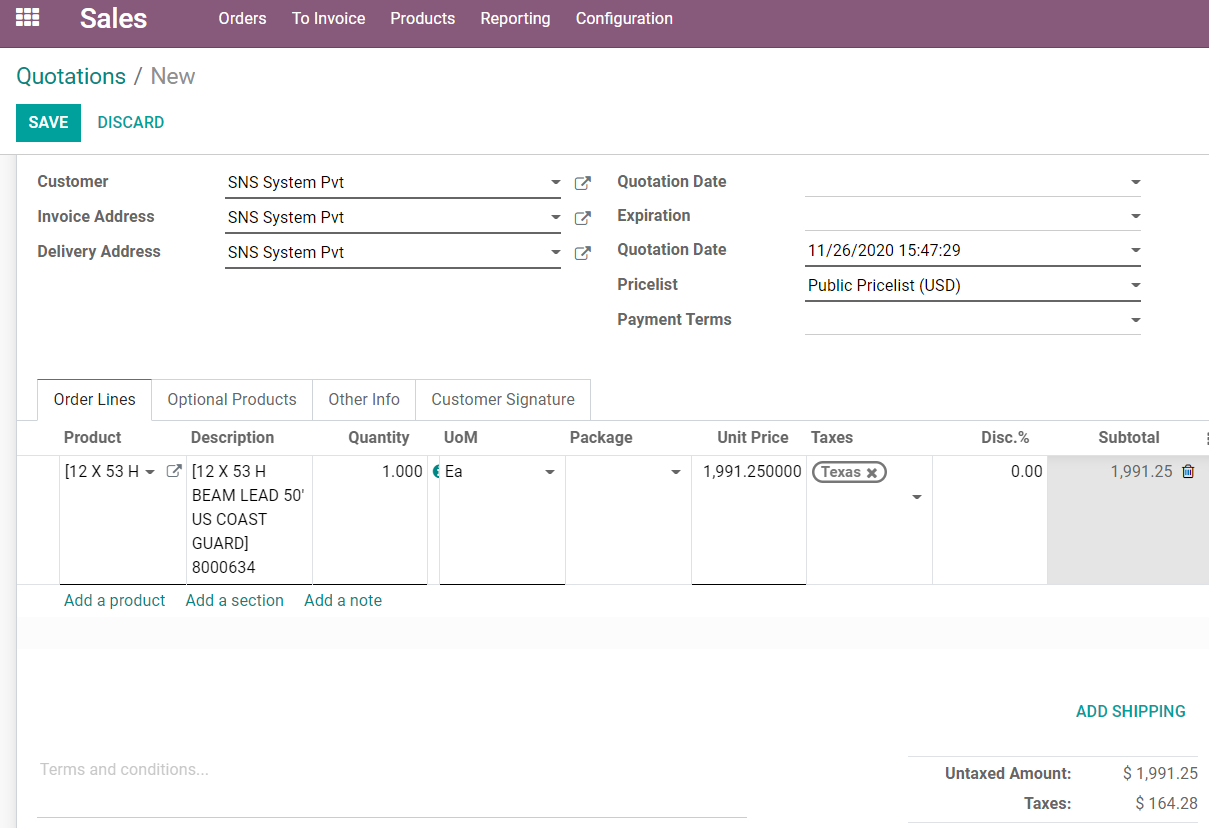
In this Quotation, we are using the same above product 8000634 with the same pricelist and check the Unit Price value. Unit Price is displaying the wrong price
4. Now need to modify the Public Pricelist surcharge value as 0
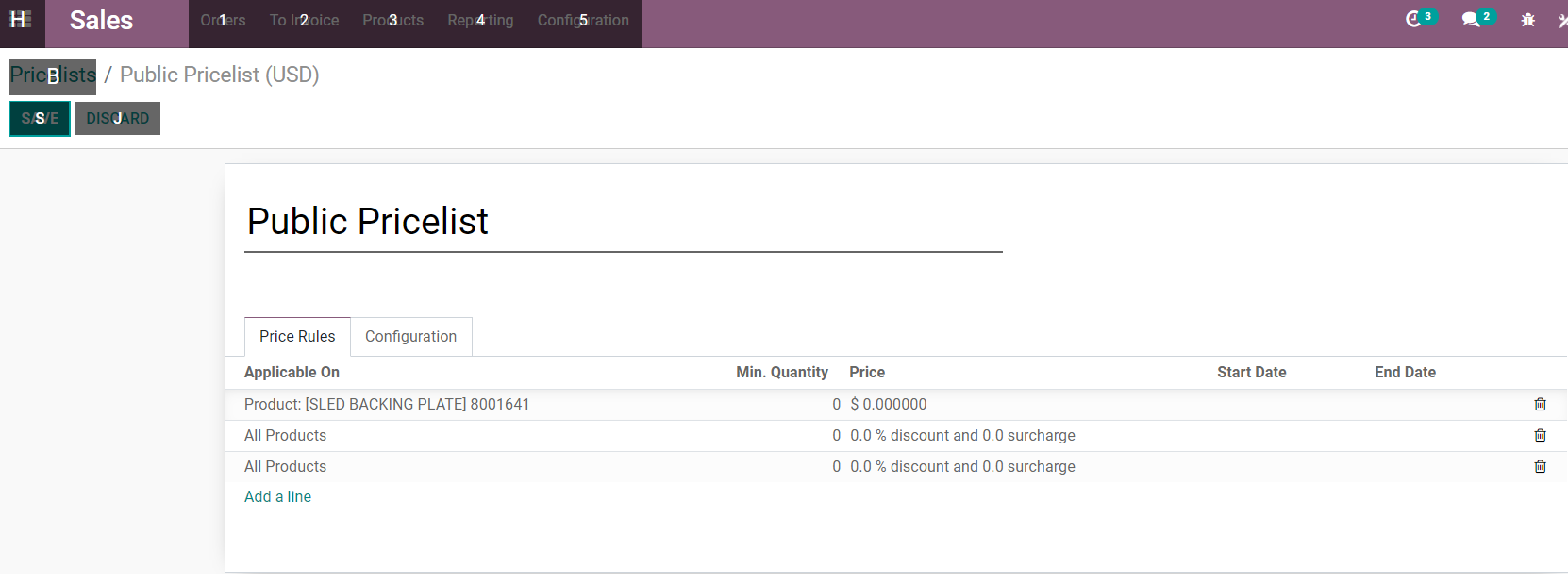
for all Product, you need to change Cost as the Sales Price
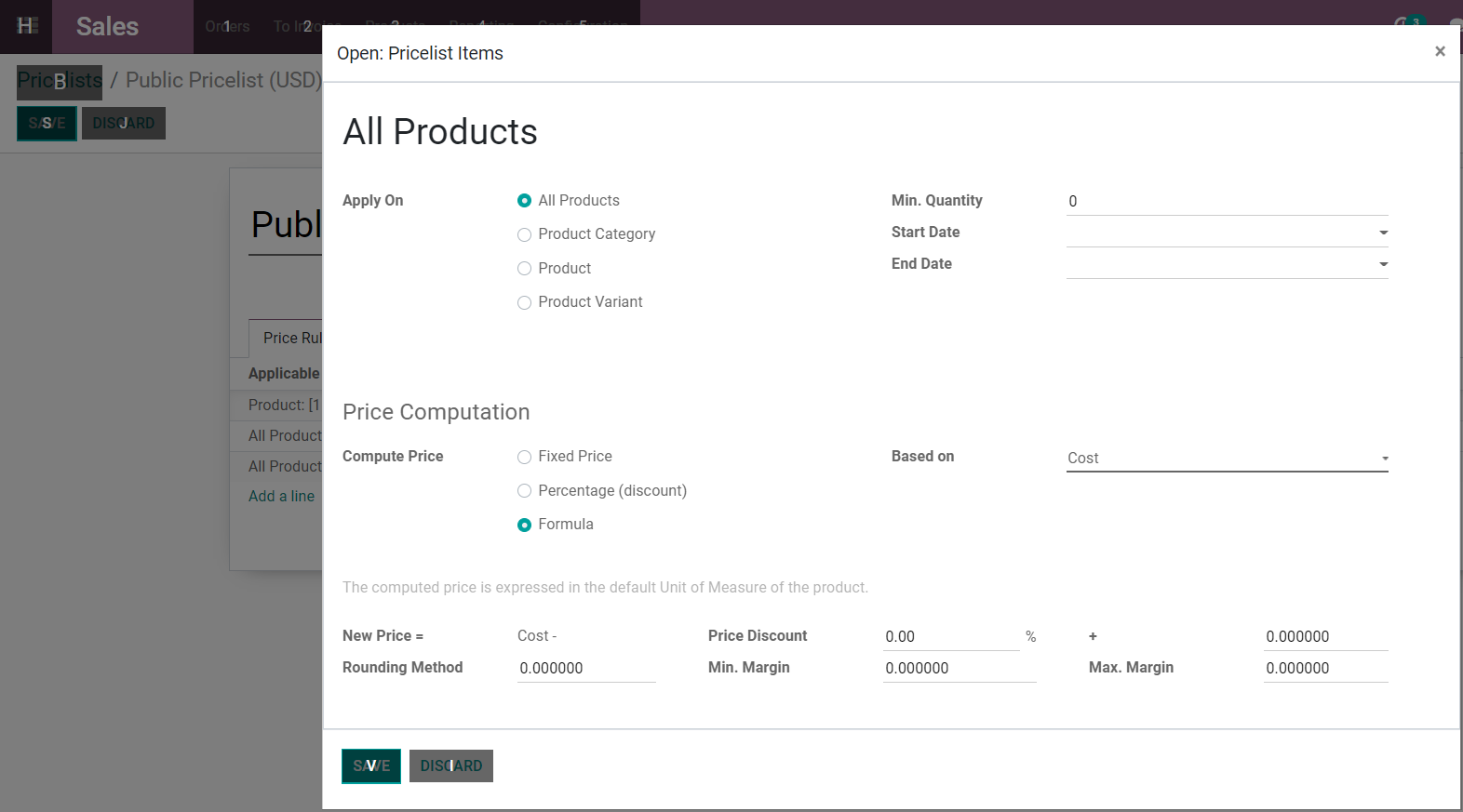
5. After making these changes, we are going to make again quotation with the same product. Please check it is taking correct Sales Price from Product and making Quotation on Sales Price.
Purchase Order Unit Price customization services:
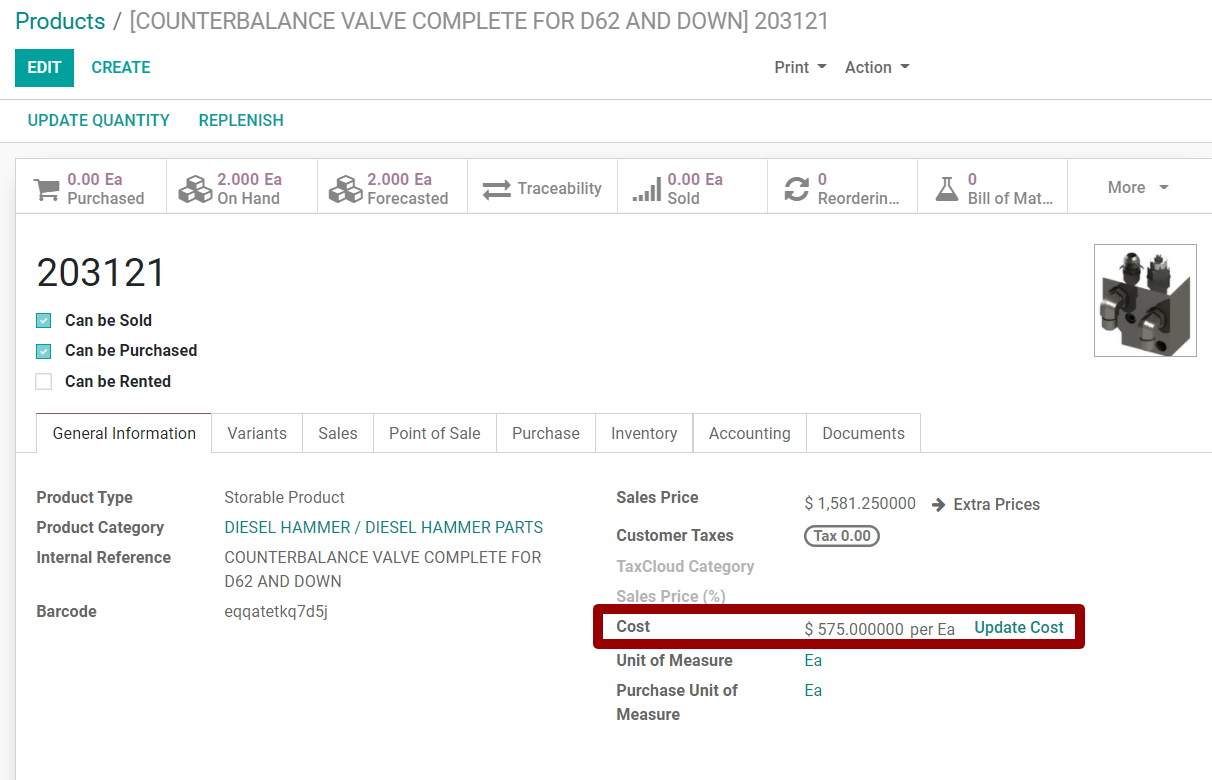
1. If the product is having a cost then its Purchase tab should have vendor details with the Product Price. Every product should have Vendor details in the purchase tab with the price.
Under the Purchase Tab
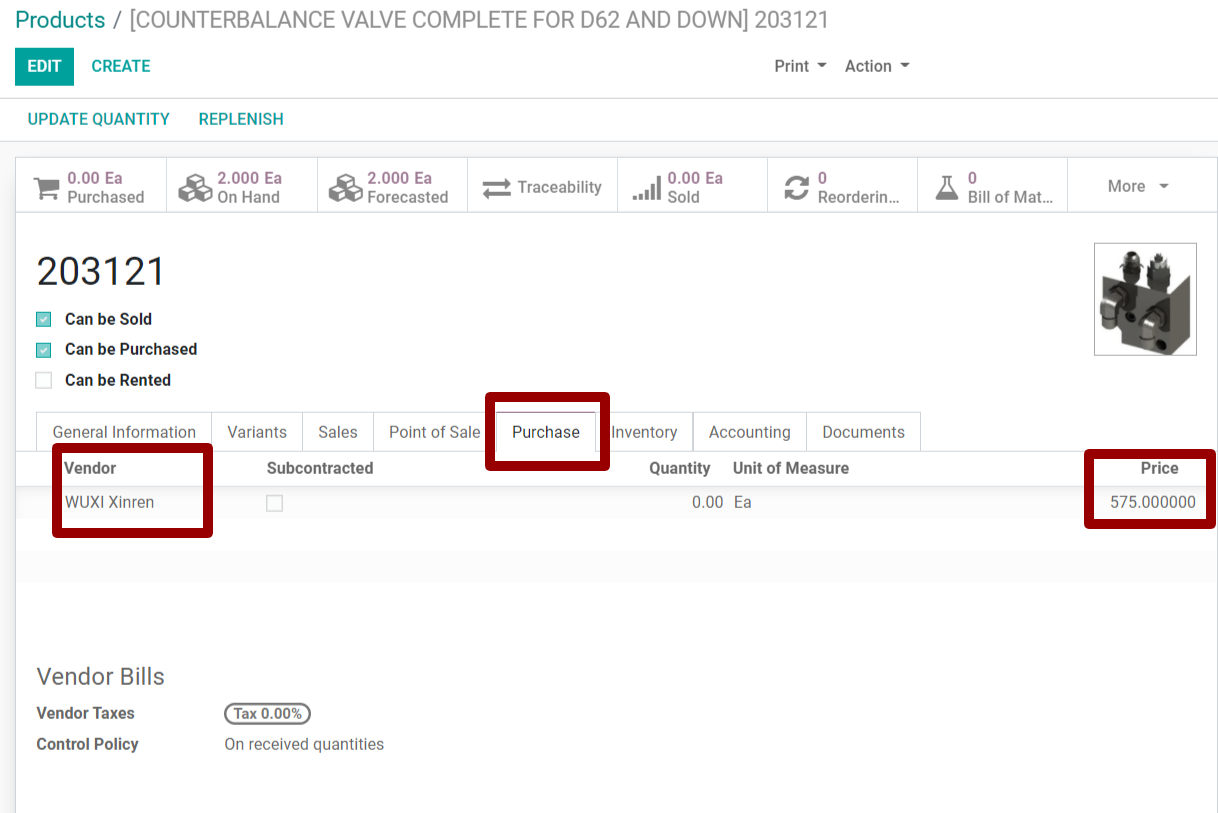
2. If we are going to make Purchase Order for any Product then we have to create an order for a particular Vendor which we set in the product vendor.
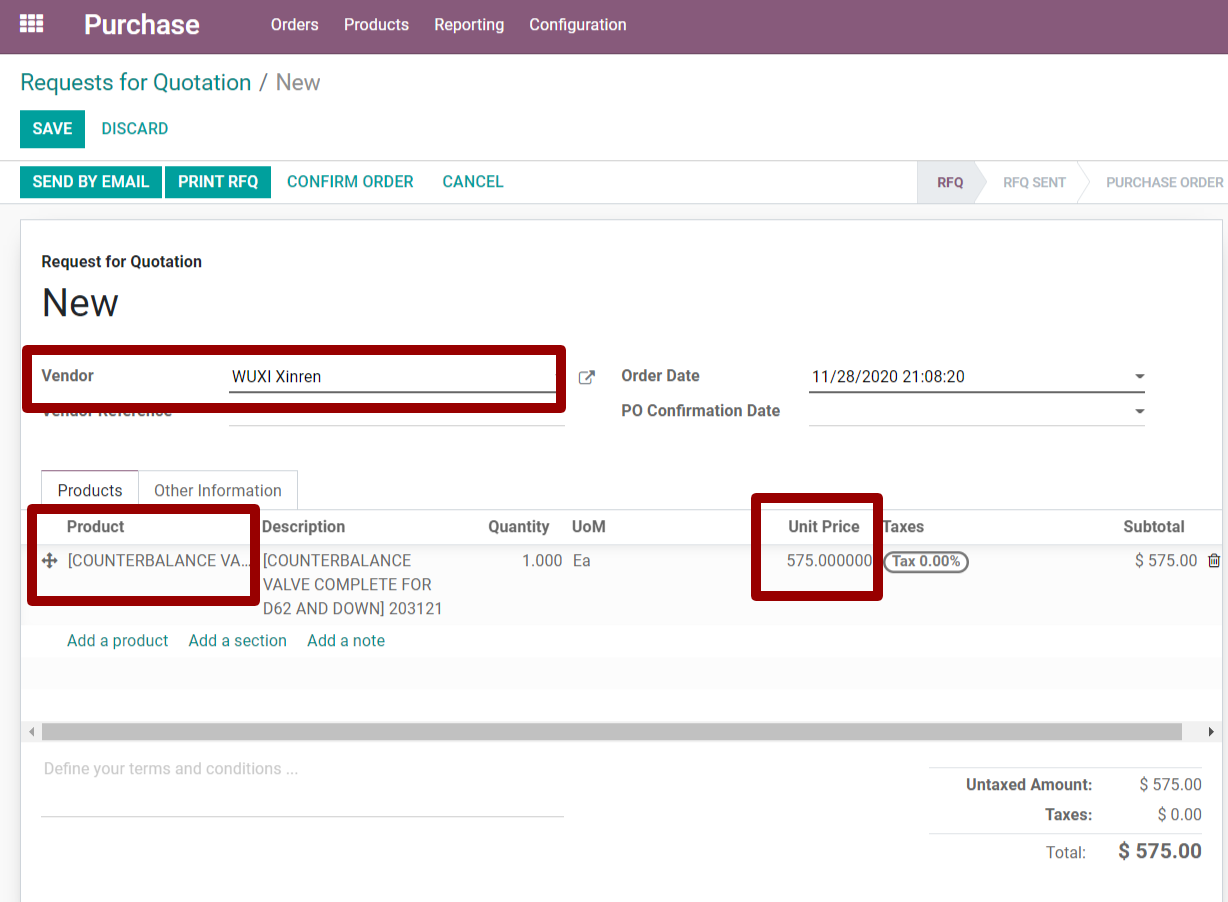
3. Above both conditions should follow then only Product cost display in the Purchase Order Unit Price.
Add Comments or Memo Column in Sales Order Tree:
1. Open Sales Oder page and check the field value from Debug ==> Edit View: Form
2. When you click on Edit View: Form one pop up will open and you can check the form fields and copy the field which you want to display in tree column
<field name="x_studio_memo" string="Memo" modifiers="{}"/>
3. Now got to Setting ==> Technical ==> Views
Open sales.order view and cliek on Edit
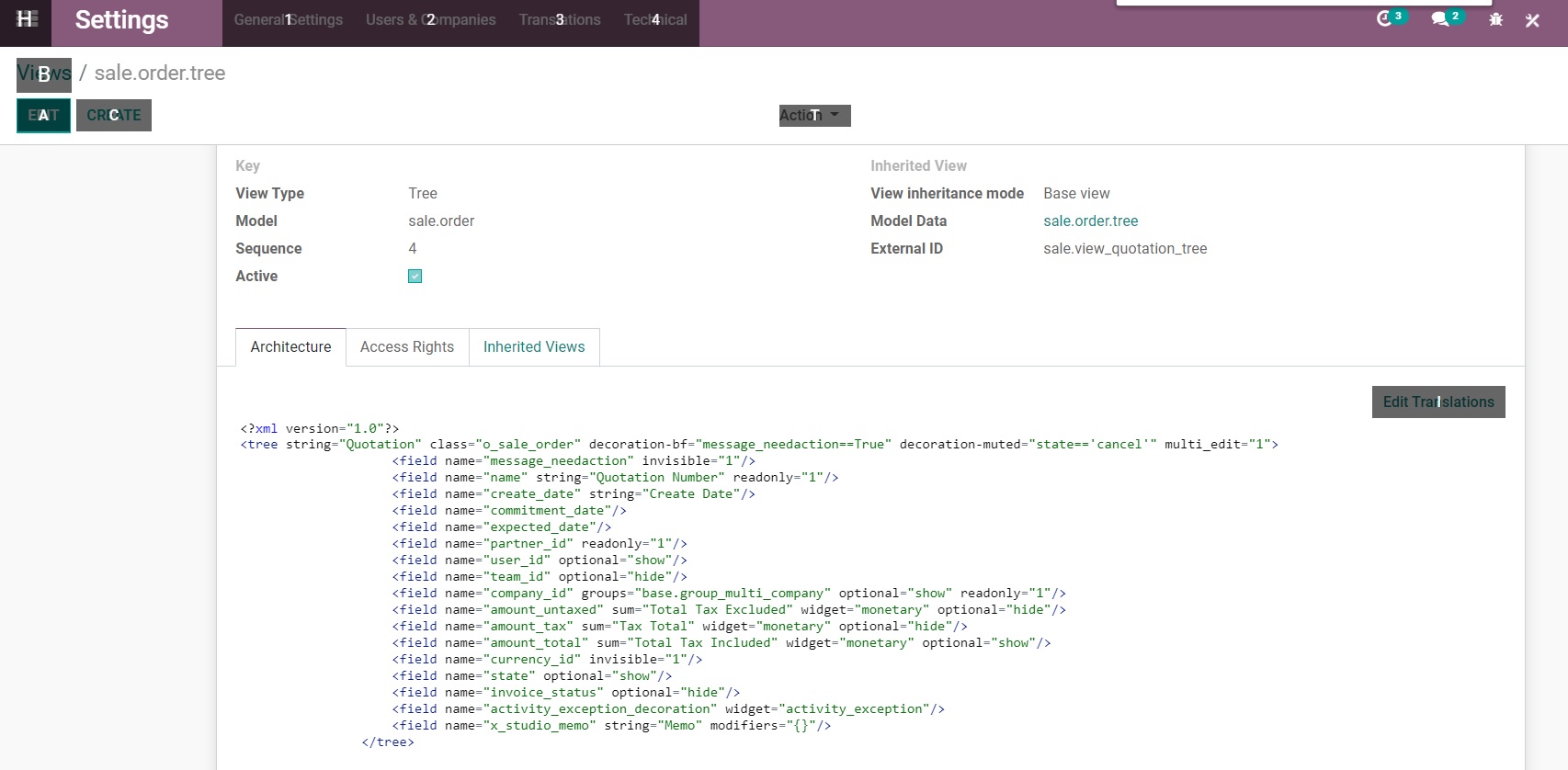
Add the filed value at the last and Save the view.
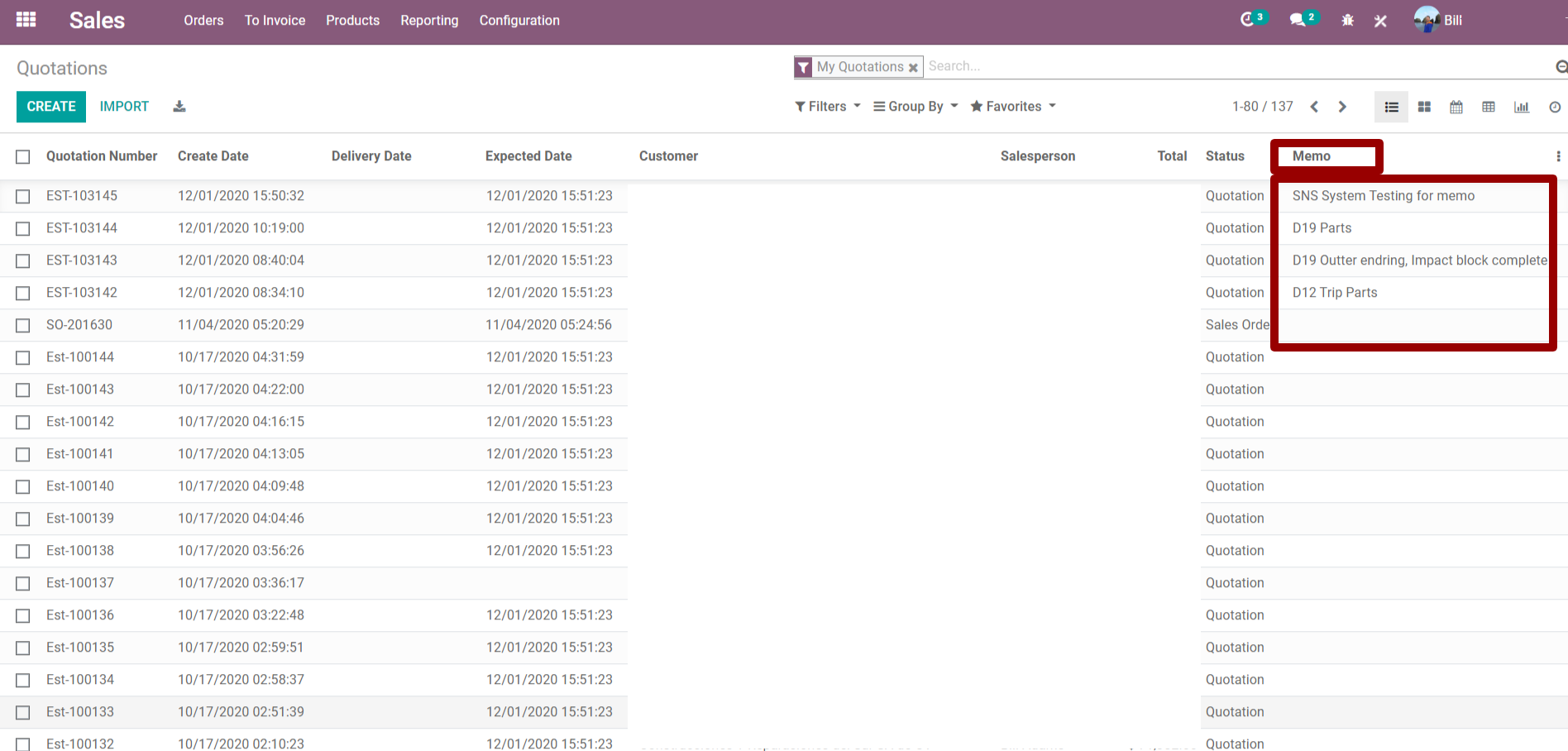
4. After saving the value you can check the new column name Memo at the Sales Order Tree view
How to make changes in Sales Quotation Customer Preview Template:
Step1: Go to the Setting ⇒ Technical ⇒ Views
Make sure you open the developer mode
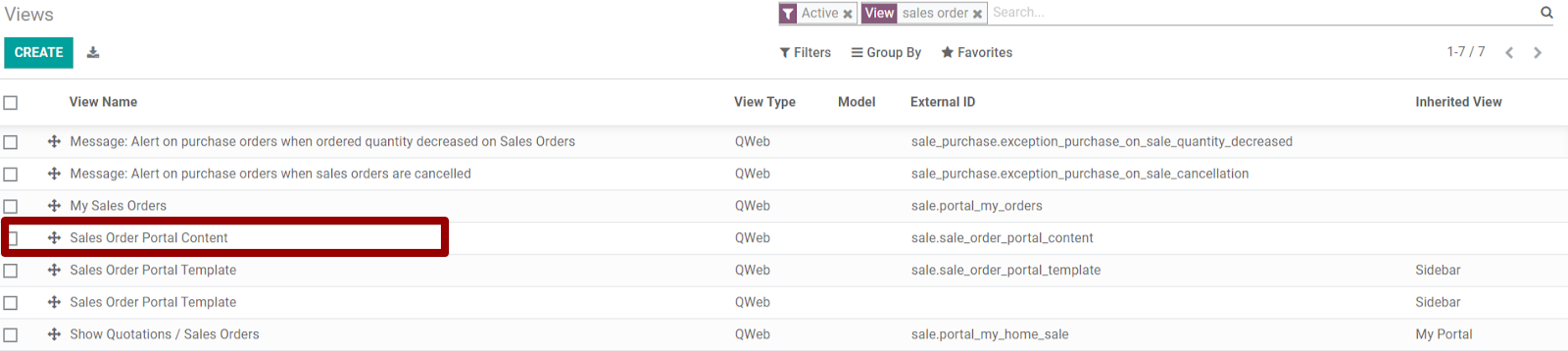
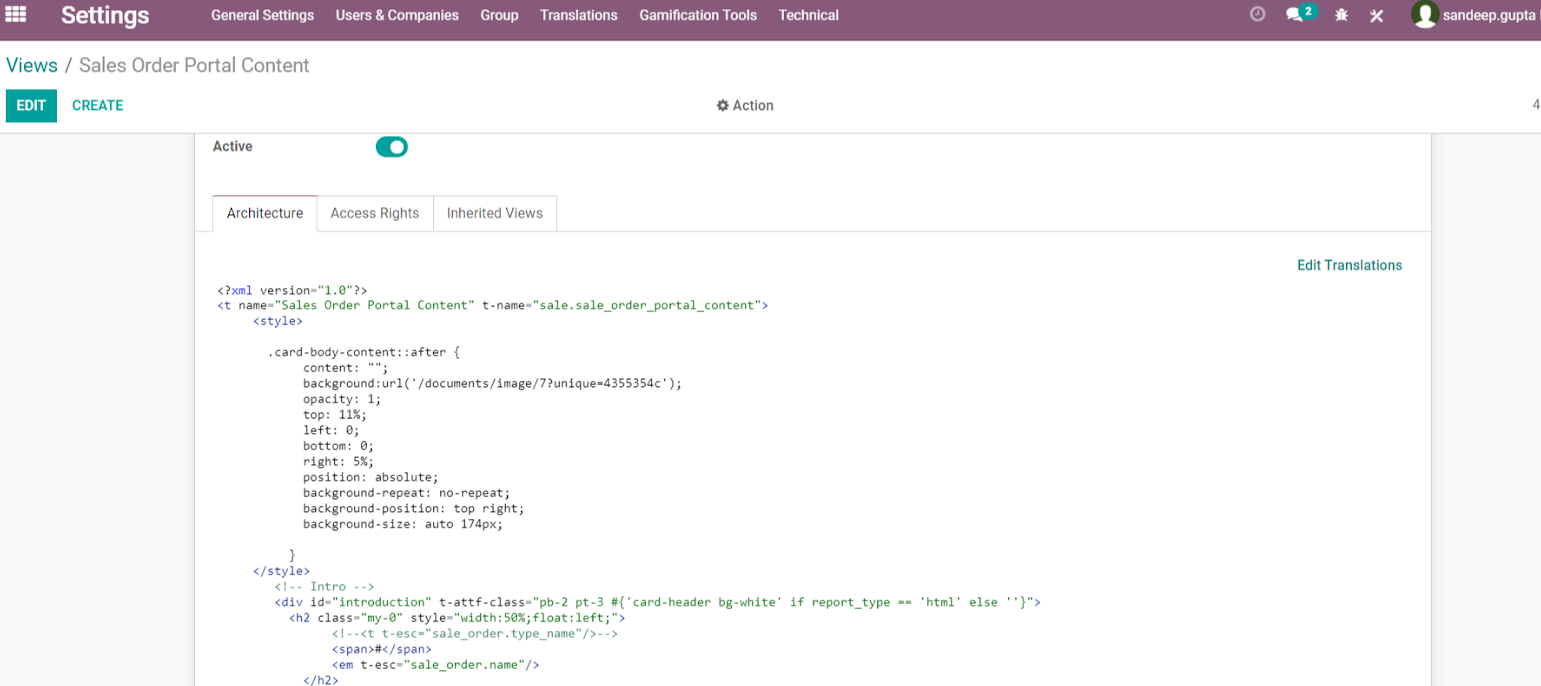
Step2: After opening the view you need to modify Sales Order Portal Content. Click on the Sales Order Portal Content and press on the edit button to modify it.
Step3: Now we have to make changes according to our requirement and we need to edit particular code. Right now we are making changes for
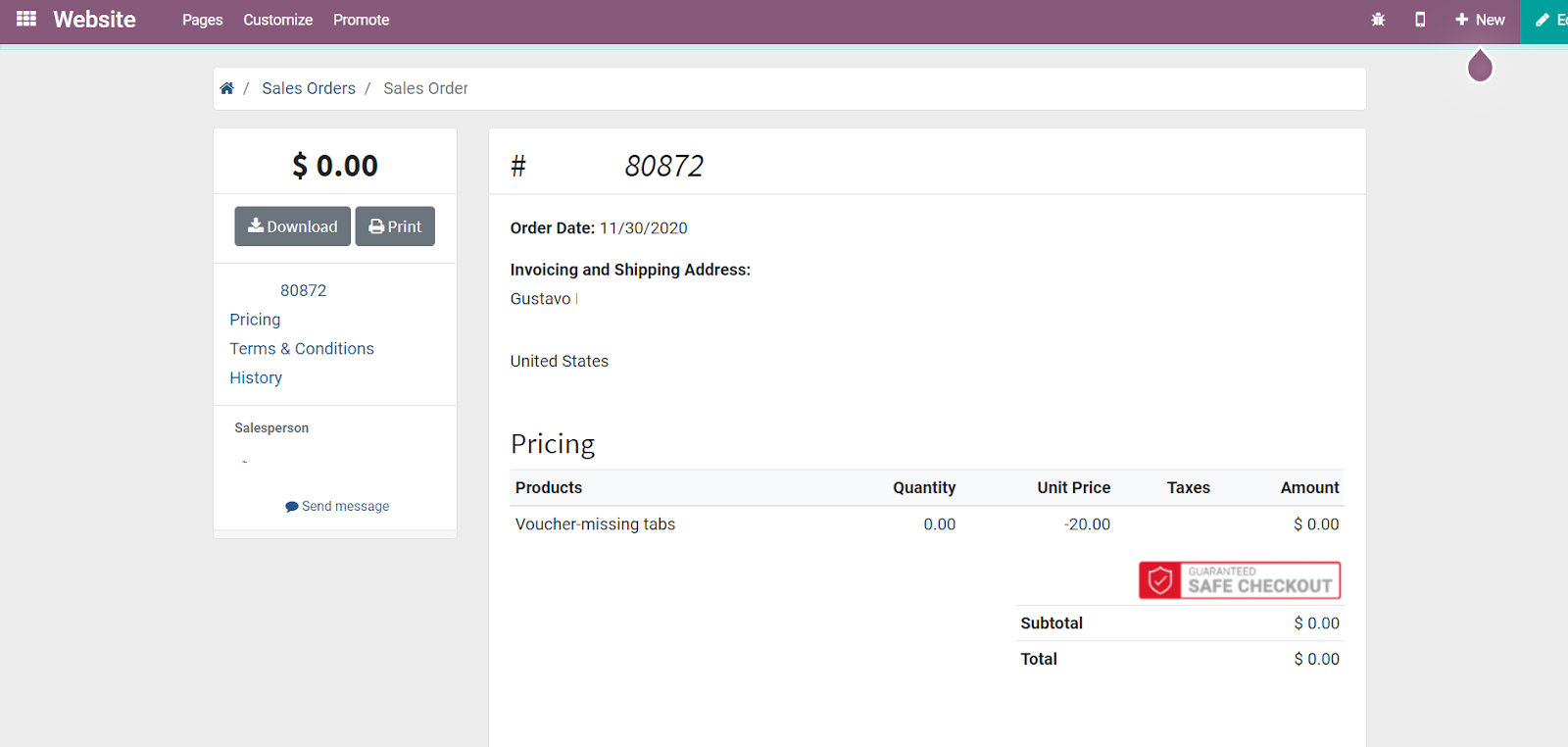
- Logo at Right side
- Adding Watermark Logo Image
- Adding Safe Checkout Image at the Right side and above the Subtotal
Step4: We need to upload images to the application before making the changes. Now we need to upload the Watermark logo and Safe checkout image.
These 2 images we can upload by the Document module.
Just go to the Document module, Click on Product and upload the images for watermark Logo and Safe checkout.
After uploading the Image you have to check the image's URL to check the image name. Click on the image and right click and open with the new browser tab
It will provide the URL for Safe Checkout like below
Safe checkout Image URL
/web/image/8?unique=0676e725&model=documents.document
Image path here
/documents/image/8?unique=0676e725
Watermark Logo Image URL
/web/image/7?unique=4355354c&model=documents.document
Image path here
/documents/image/7?unique=4355354c
Logo Image URL
/web/image/website/1/logo/1%20%20Prep?unique=9c40781
Image path here
/web/image/website/1/logo/1%20%20Prep?unique=9c40781
Step5: After getting the images path, we need to make the changes accordingly and save changes.
Step6: After that, we will check the changes to open the Sales Quotation Customer Preview template. You will see all the new changes there.
How to create the Test Link or Test Database from Odoo Enterprises Live application Database:
During all these steps please make sure we perform every step carefully otherwise it will harm or delete the Live database.
1. Open your Odoo Enterprises Live application Link
2. Login with Administrator user credentials
3. At the top click on Your Name drop-down and click on "My odoo.com account"
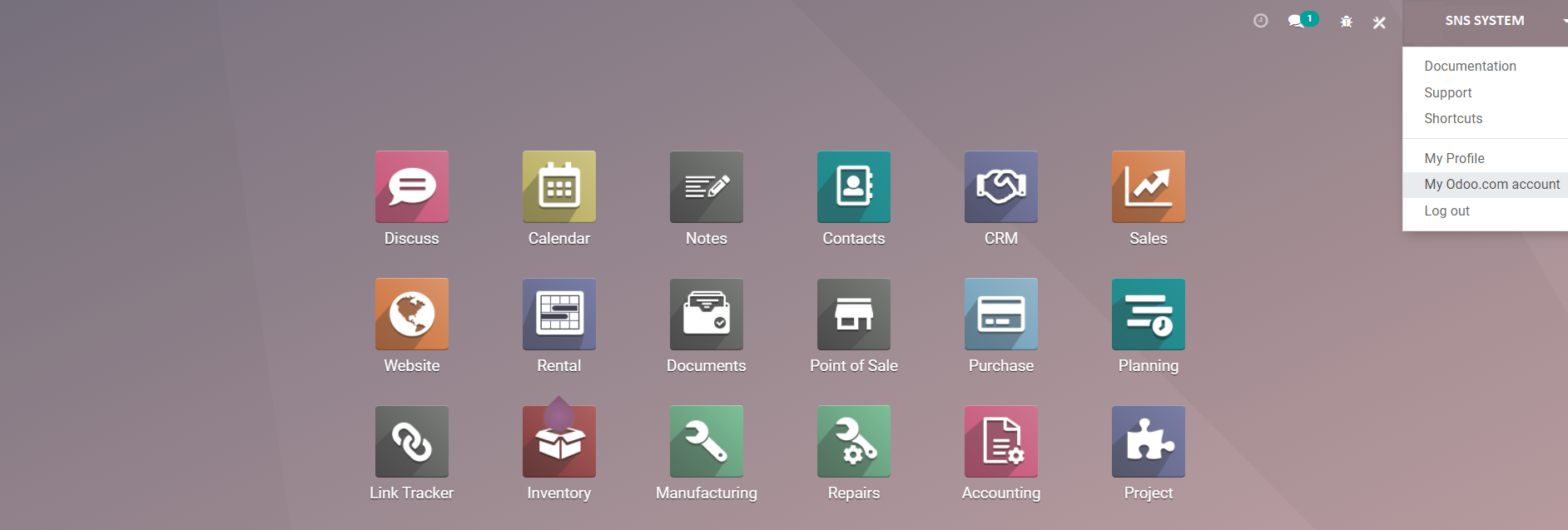
4. After clicking on "My odoo.com account", it will redirect to Odoo.com and login with the same credentials as you logged in at your Live application.
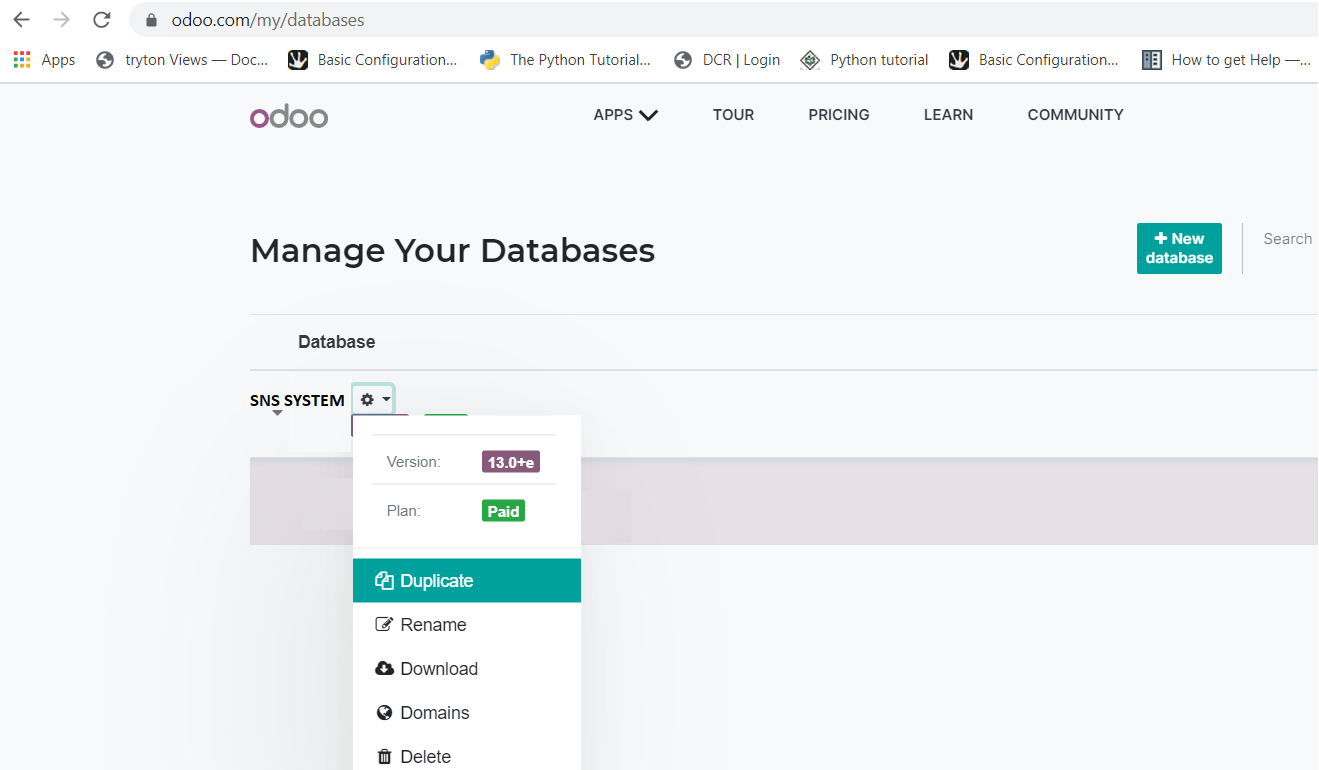
5. After Login at the top, click on your database name drop-down menu(Ex SNS SYSTEM) and select the My Databases menu. Check the below screenshot
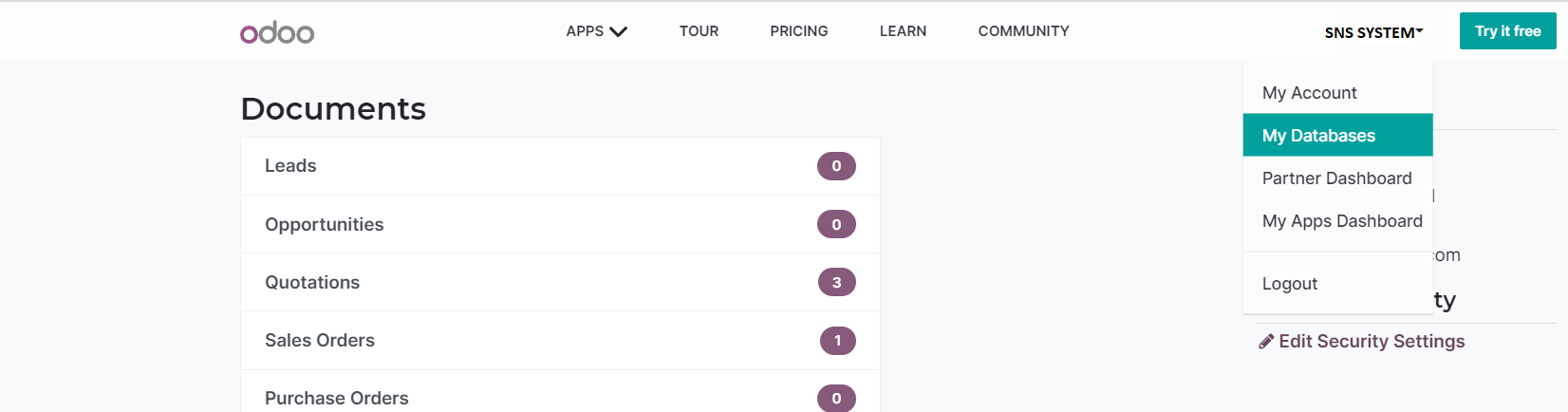
6. Under the Manage Your Database heading, click on your Database name(Ex SNS SYSTEM) and click on Duplicate
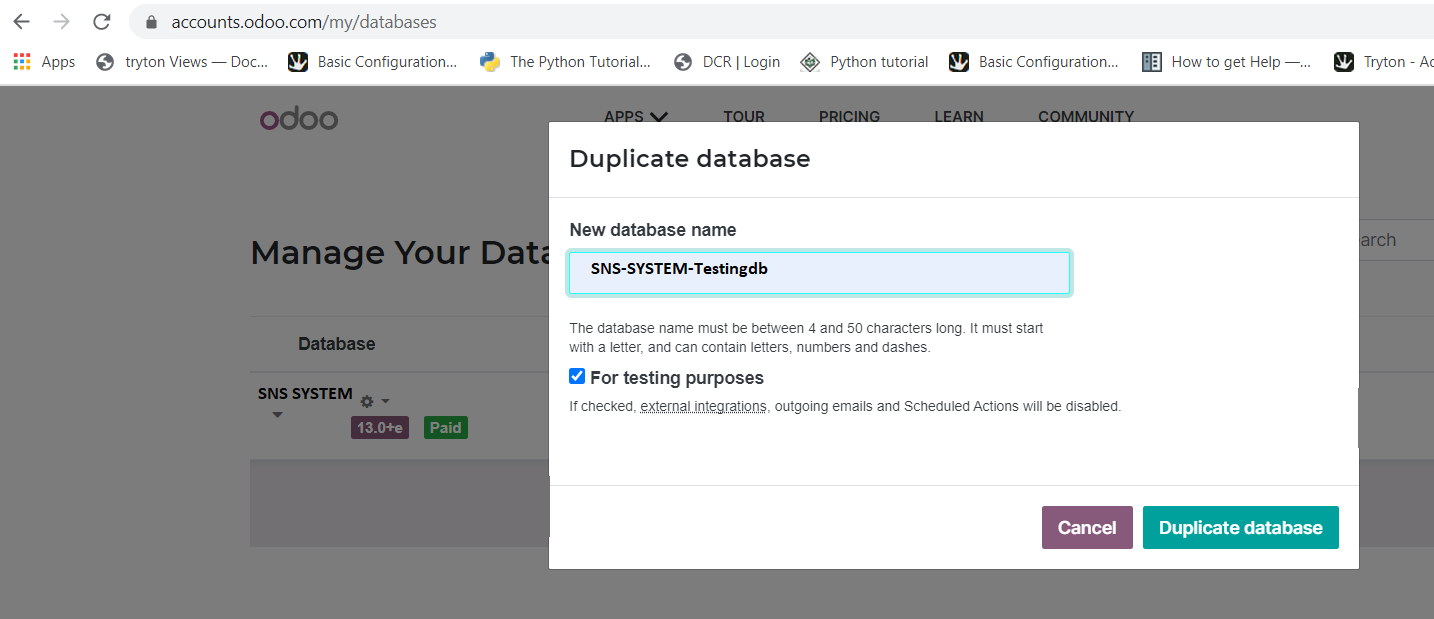
7. After clicking it will open one popup and provide the test database name and make sure the "For testing purposes" checkbox should select.
after it clicks on the Duplicate database button.
8. Once you complete the above step, it will create the duplicate database and open the new test link with the duplicate database or Test database.
9. Now it will work for 30 days with the same things on the Live server.
10. You will get one mail regarding the activation of this new database, now you have to check your emails and approve the new database otherwise this new test link will expire in 4 hours.
How to make Product Barcode automatically generate in Odoo 13 Enterprises:
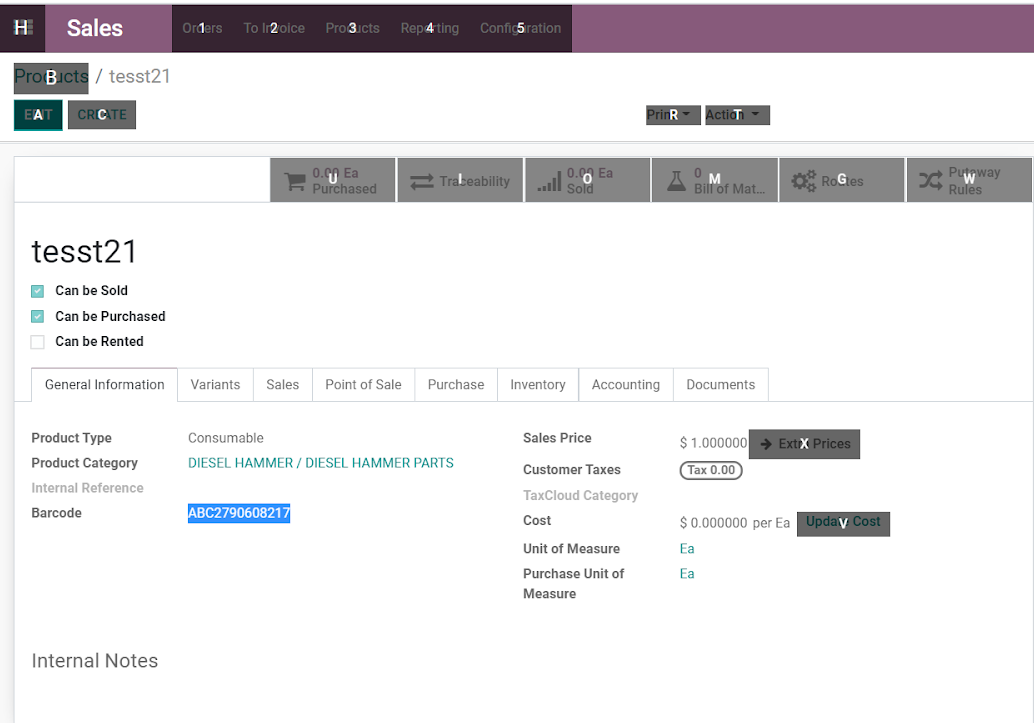
1. This is the sequence we have in our application and what type of sequence of barcode we need to create we can add prefix and suffix.
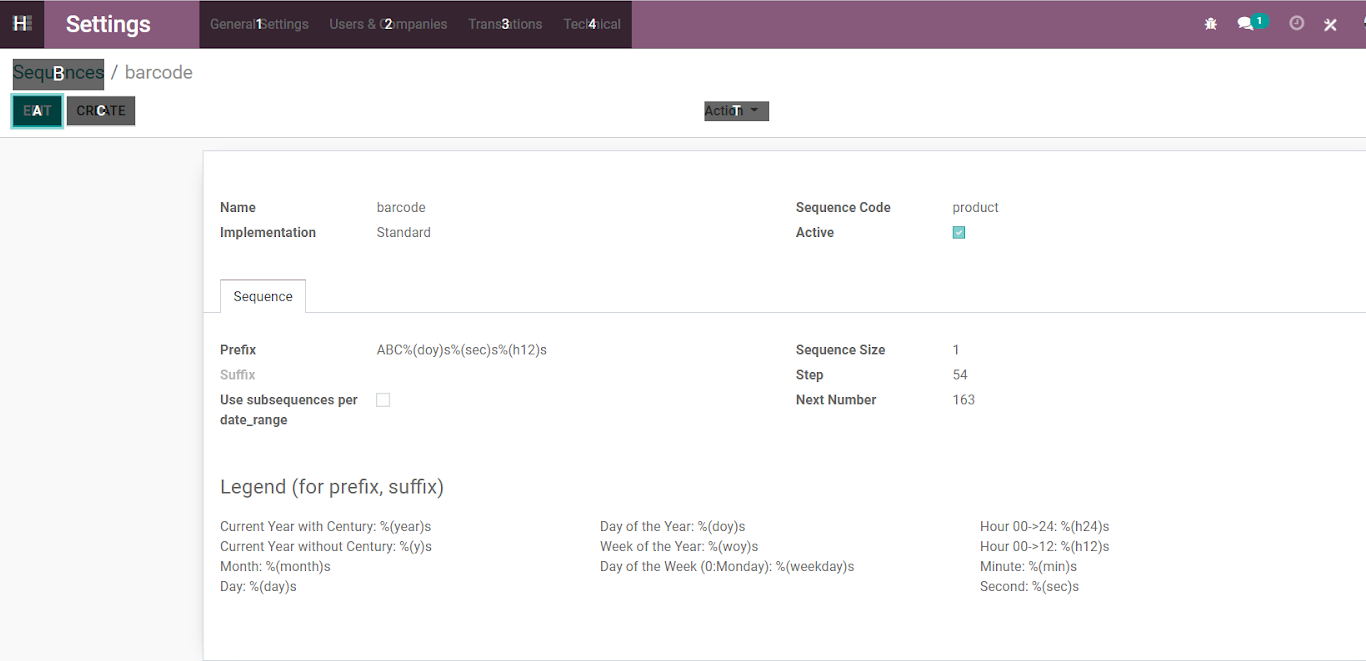
2. This is the script we have to create in Odoo13 in Automatic Action. This script will read the last sequence and create a barcode automatically.
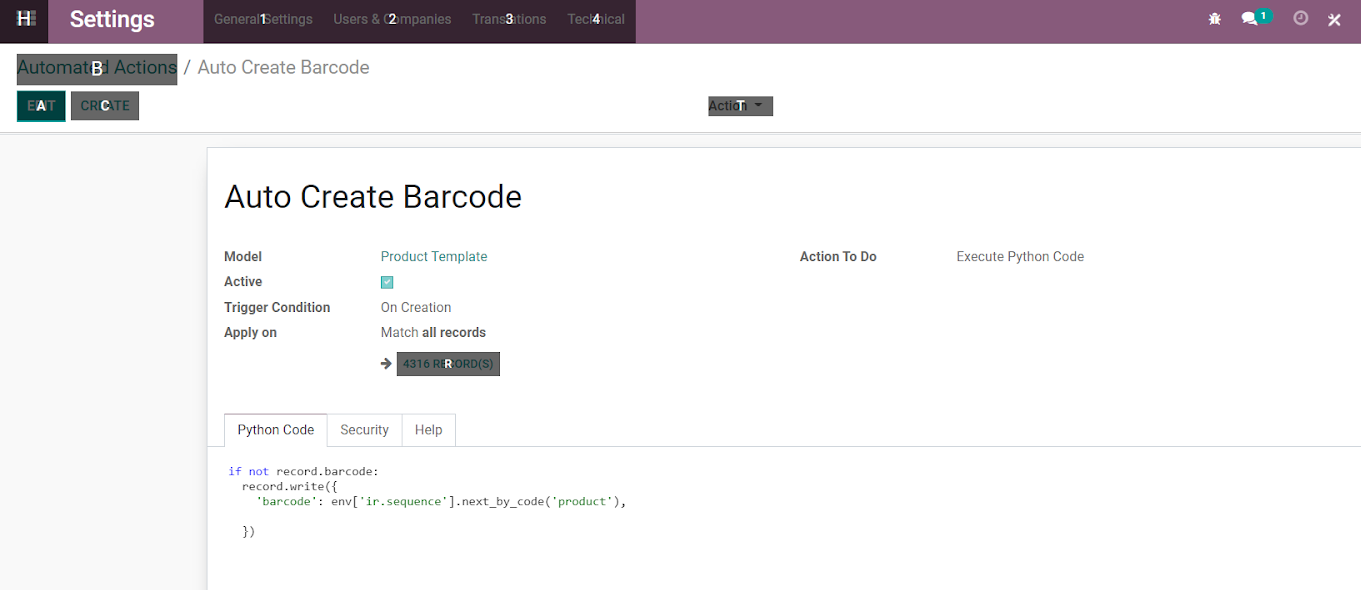
3. After setting the script, when we are going to create any product and save the value then the barcode generates automatically.
The process of Purchase Order and it's cost price in Odoo 13 Enterprises:
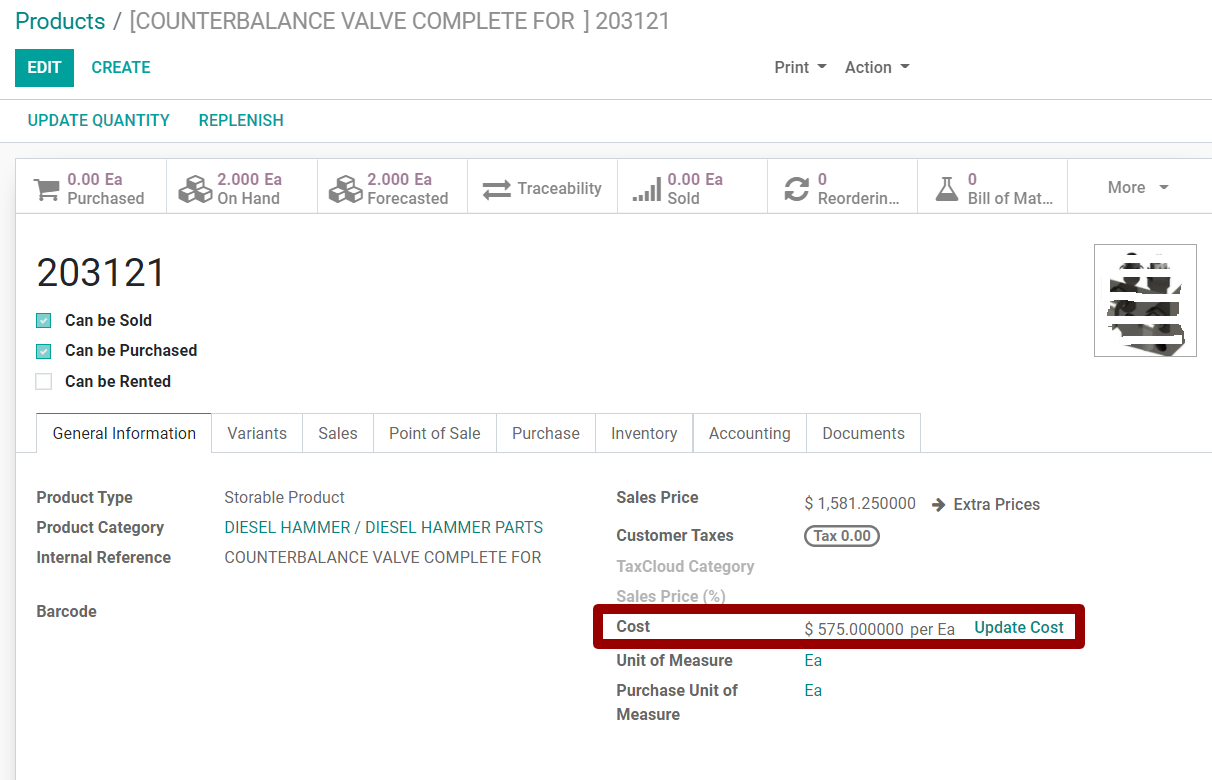
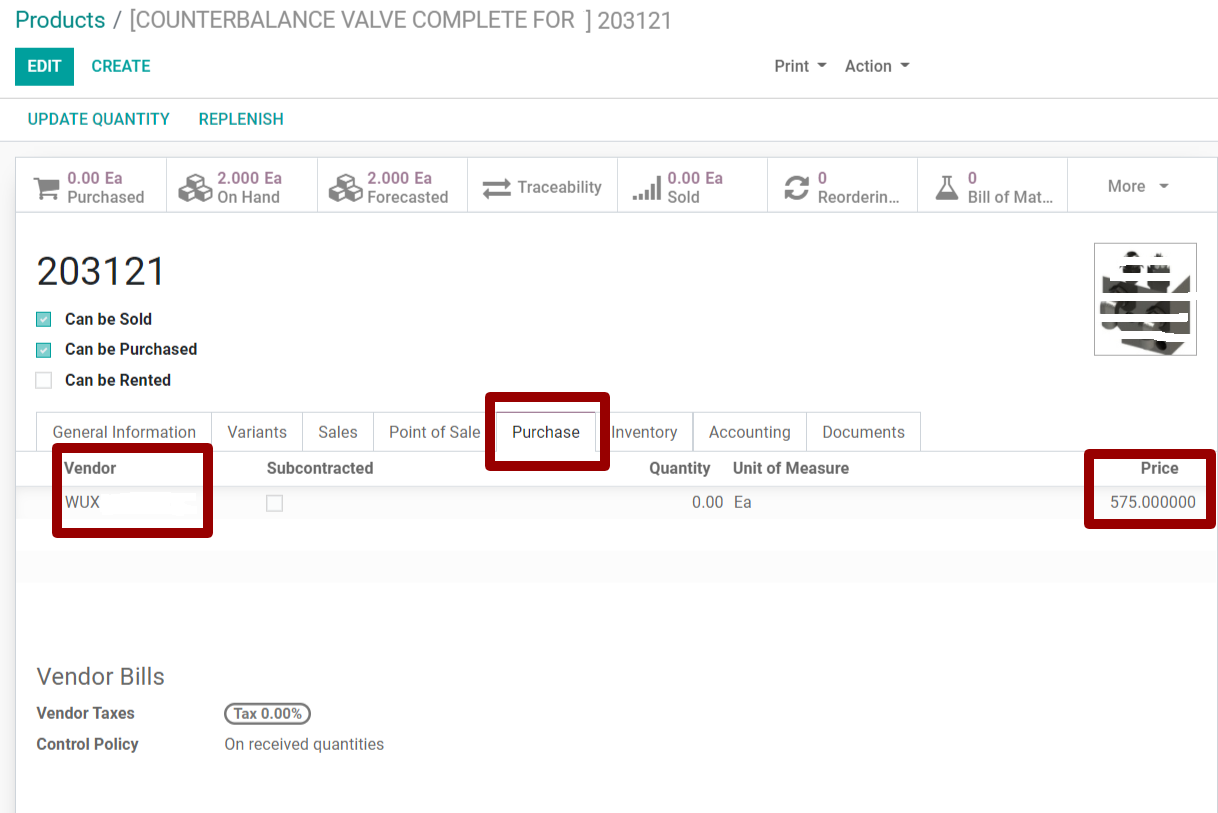
1. If the product is having cost value then its Purchase tab is also having vendor details with the Product Price. Every product should have Vendor details in the purchase tab with the price.
This condition must be fulfilled.
2. If we are going to make a Purchase Order for any Product then we have to create an order for a particular Vendor which we set in the product vendor.
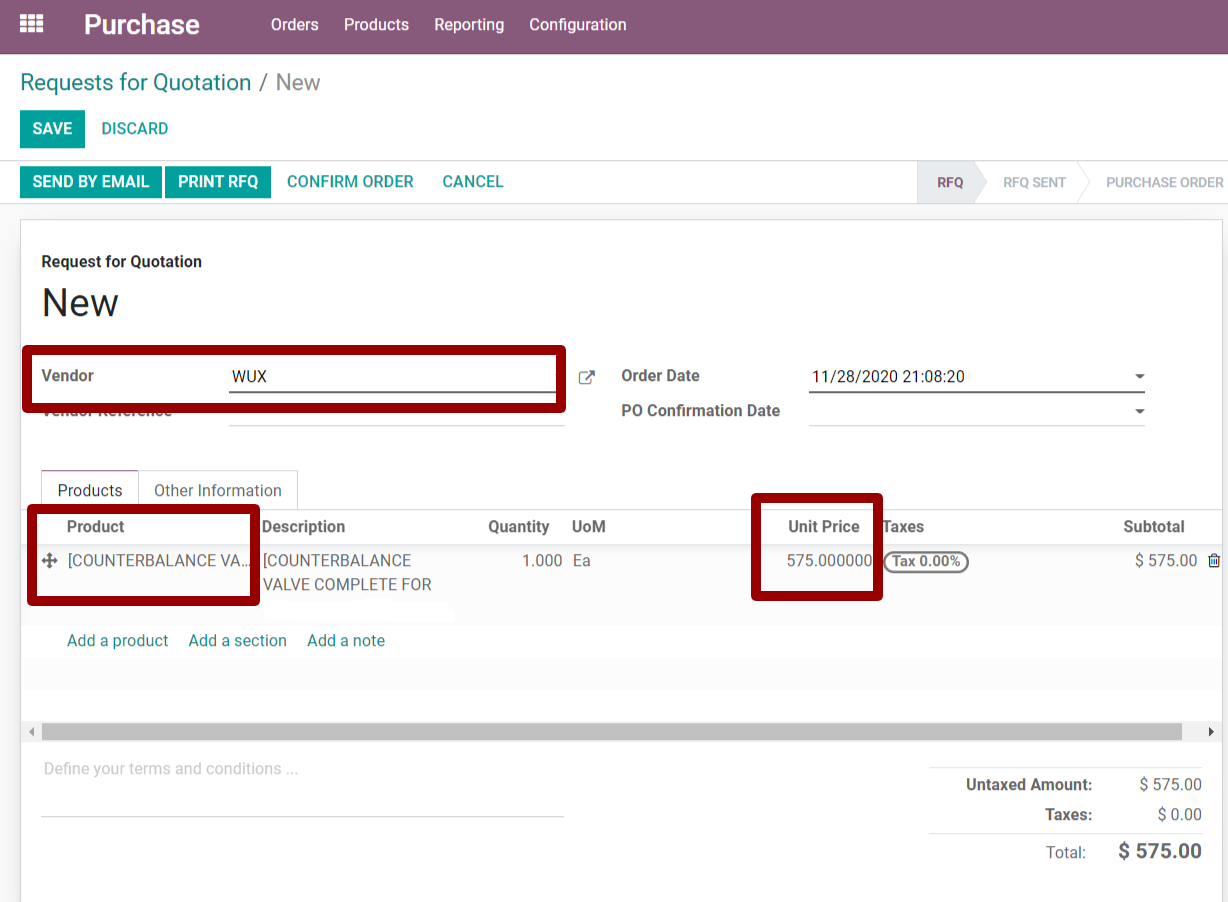
3. If above any condition is missed then it will not display price correctly.
How to set tax in Sales Order for a particular State customer:
1. Accounting ==> Configration ==> Taxes
2. Accounting ==> Configration ==> Fiscal Positions
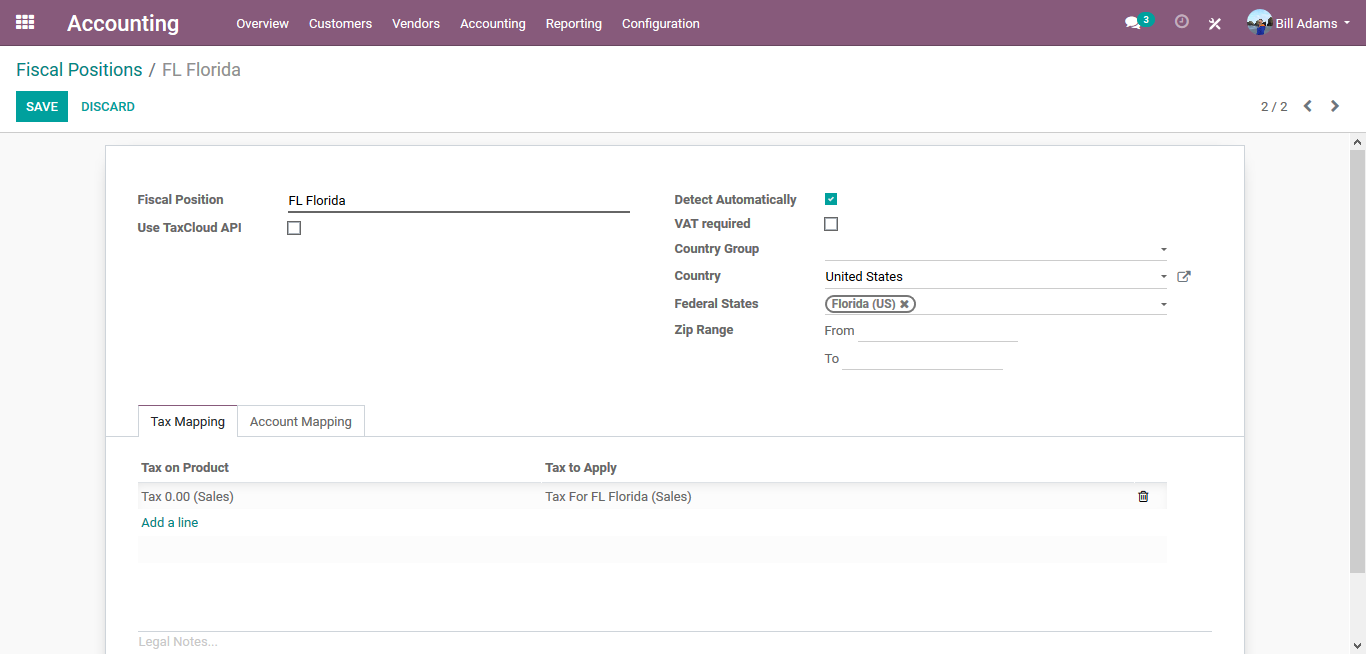
3. After making the changes if you create a sales order for Florida state customer it will set the tax for 6%